

If you’re here for just the snippet, skip over to Solution.
Background
Sometimes, you need to add a custom field to your WooCommerce product editing page. It can also be helpful if you have the value of that custom field easily viewable without having to open the product. In this case, you can add a new custom column to the default columns in the WooCommerce products listing page. As a reminder, this page is in WP Admin > WooCommerce > Products:
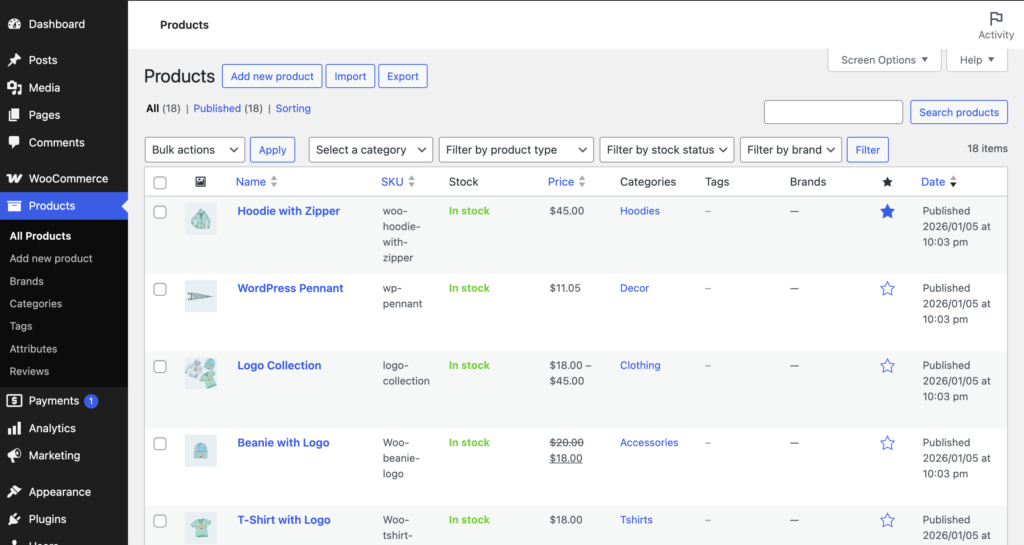
New columns appear after the Date column. This helps you view information about products easily without having to load the product editor page.
Solution
You can use this code snippet example to add a new column. In this case, the Advanced Custom Fields (ACF) plugin was used to add a custom product data to the editing screen. So, the snippet example uses ACF’s get_field function to get the data for each product to display it in the column. Depending on how you added your custom field, the line that echos the custom field would need to be modified.
Code goes into your child theme’s functions.php file, a custom plugin, or a code snippets plugin like Code Snippets:
// Define a new column
add_filter( 'manage_edit-product_columns', 'add_custom_column', 9999 );

function add_custom_column( $columns ){
   $columns['custom-column'] = 'Custom Column Name Here';
   return $columns;
}


// Define the field that would be included in the custom column
add_action( 'manage_product_posts_custom_column', 'column_content', 10, 2 );

function column_content( $column, $product_id ){
    if ( $column == 'custom-column' ) {
      echo ( get_field( "custom_field", $product_id ) );
    }
}
If you need to add multiple columns, you just need to add more options in the code for that, like so:
// Define a new column
add_filter( 'manage_edit-product_columns', 'add_custom_columns', 9999 );

function add_custom_columns( $columns ){
   $columns['custom-column-1'] = 'Custom Column Name 1 Here';
   $columns['custom-column-2'] = 'Custom Column Name 2 Here';
   return $columns;
}


// Define the field that would be included in the custom column
add_action( 'manage_product_posts_custom_column', 'columns_content', 10, 2 );

function columns_content( $column, $product_id ){
    if ( $column == 'custom-column-1' ) {
      echo ( get_field( "custom_field_1", $product_id ) );
    }

    if ( $column == 'custom-column-2' ) {
      echo ( get_field( "custom_field_2", $product_id ) );
    }
}
While you can add as many columns as you want, the space would eventually overflow if you add too much. You can use the Screen Options button at the top of the page to manage what columns appear. If you do not need to show SKU or Images for example, you can disable those columns to make more room. Your custom columns will be on the list as well and will be enabled by default.
Now you know how to add a custom column (or columns) to WooCommerce products listing.

